Import/Export Tools
Overview
OnPitch provides secure import and export tools to help you manage your subscriber data effectively. These tools allow you to backup your fan information, import existing subscriber lists, and work with your data in external applications while maintaining strict security and privacy standards.
What You'll Need
- An active OnPitch account with subscriber data
- Access to your dashboard's "Fans" section
- CSV files for import (if importing data)
Exporting Subscriber Data
1. Accessing Export Function
Navigate to your fan data dashboard and locate the export controls.
Step 1: Go to your dashboard and click on "Fans" in the sidebar
Step 2: Look for the "Export" button in the top-right corner of the fan data table
Step 3: Click the "Export" button to initiate the process
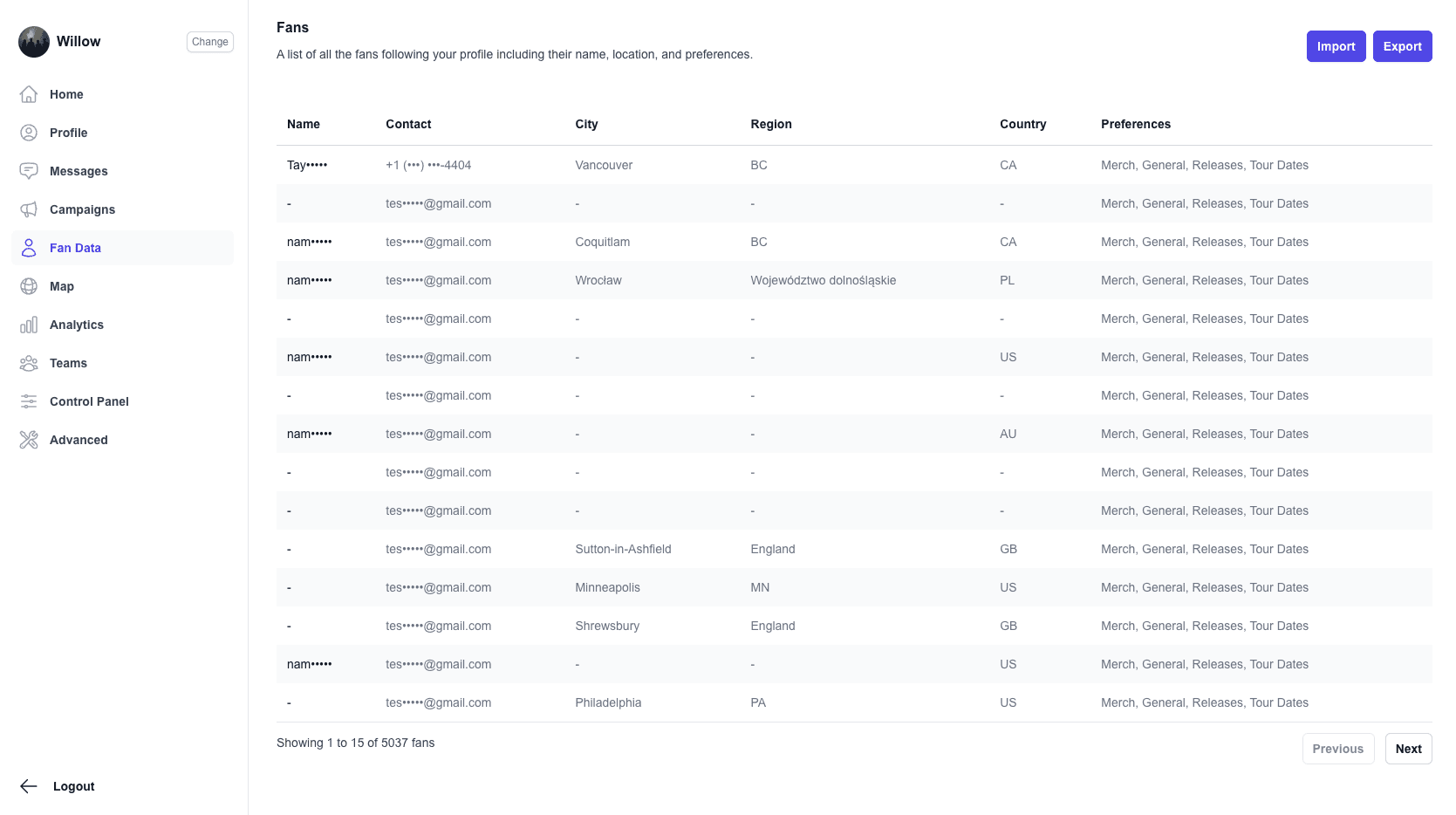
What you should see: An "Export" button alongside the "Import" button in the fans section header.
2. Export Process and Security
OnPitch takes data security seriously during the export process:
Step 1: Click the "Export" button
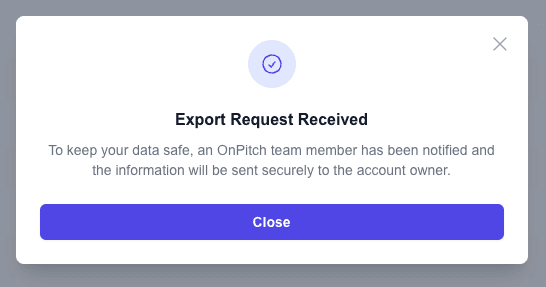
Step 2: A confirmation modal appears explaining the security process
Step 3: The system generates your export
Step 4: An OnPitch team member is automatically notified
Step 5: You'll receive the export file to the primary email associated to your OnPitch account
3. Export File Contents
Your exported CSV file includes:
- Name: Subscriber display names
- Contact: Phone numbers or email addresses
- City: Location information
- Region: State/province data
- Country: National location
- Preferences: Communication preferences in readable format
4. Export Delivery
Due to security requirements:
- Export files are not immediately downloadable
- An OnPitch team member reviews and processes the request
Importing Subscriber Data
1. Accessing Import Function
Import new subscriber data using the CSV upload feature:
Step 1: Navigate to the "Fans" section of your dashboard
Step 2: Click the "Import" button next to the "Export" button
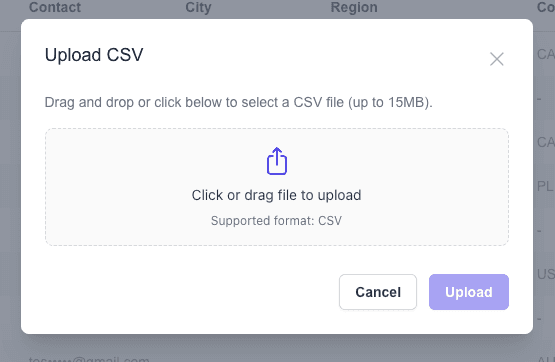
Step 3: The CSV upload modal opens
Why this matters: Importing allows you to add existing subscriber lists.
2. CSV Upload Interface
The import modal provides a user-friendly upload experience:
Drag and Drop: Drag CSV files directly onto the upload area
File Selection: Click to browse and select files from your computer
File Validation: Automatic checking of file type and size
Progress Indication: Real-time upload progress display
3. File Requirements and Validation
Your CSV files must meet specific requirements:
File Type: Must be .csv format
File Size: Maximum 15MB per upload
Content Format: Proper CSV structure with appropriate headers
Data Quality: Valid contact information and properly formatted data
Note: Failure to provide quality data that can imported will result in processing delays.
4. Import Processing
After successful upload:
Step 1: File uploads to secure OnPitch storage
Step 2: Automatic notification sent to OnPitch team
Step 3: Manual review and processing begins
Step 4: Data is imported with proper validation
Step 5: You're notified when import is complete
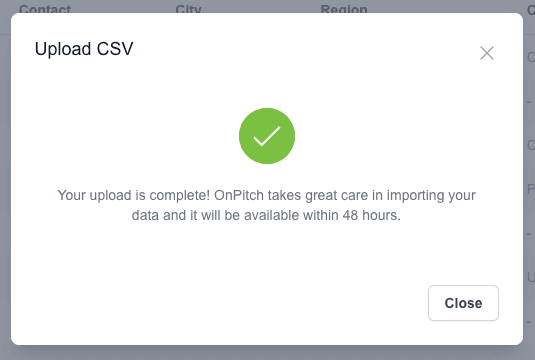
What you should see: Confirmation that your upload is complete with information about processing timeline.
Expected result: Your subscriber data is imported safely within 48 hours with proper oversight.
Data Security and Privacy
1. Security Measures
OnPitch takes security seriously by:
- Encrypted Storage: All uploaded and exported files are encrypted
- Human Oversight: Team members review all import/export requests
Why this matters: These measures protect both your data and your subscribers' privacy throughout the process.
Best Practices
1. Regular Backups
- Export your subscriber data regularly for backup purposes
- Store exported files securely on your own systems
- Keep backups updated as your subscriber base grows
2. Data Quality Management
- Clean your data before importing to ensure accuracy
- Verify subscriber marketing message consent before importing external lists
- Remove duplicates and invalid contacts
- Maintain consistent formatting across imports
3. Compliance Considerations
- Ensure all imported subscribers have given proper consent
- Respect subscriber preferences from previous systems
- Document the source and consent basis for imported data
Troubleshooting
Export Issues
- Export Not Received: Check with OnPitch support about processing status
Import Problems
- File Too Large: Split large files into smaller chunks under 15MB
- Invalid Format: Ensure your file is saved as .csv format
- Upload Fails: Check your internet connection and try again
- Processing Delays: Allow up to 48 hours for import completion
Data Quality Issues
- Missing Information: Some fields may be empty if not provided in source data
- Formatting Problems: Ensure consistent data formatting in your CSV files
- Duplicate Entries: OnPitch will identify and handle duplicate subscribers appropriately
Next Steps
After mastering import/export tools, you can:
- Set up regular backup schedules for your subscriber data
- Migrate from other platforms using the import functionality
These tools give you full control over your subscriber data while maintaining the highest security and privacy standards.